Intro
I’ve always been an Apple user myself. Back when I was a kid, I got my first iPhone. It was an iPhone 3G. Up until 2017 the mobile device game was pretty much uninteresting. Apple was making the iPhone series, Samsung was making their Galaxy series, etc.
Now’s 2025. Phones have evolved. Android has gotten better and has surpassed iOS in terms of features. And now, I’m fed up of Apple devices. iOS 26 and macOS Tahoe have been the final nail in the coffin. So I switched.
Switching phones
After trying the Pixel 9 for work, I was honestly shocked at how well it performed. So I decided to get myself a Pixel 10 Pro when it released.
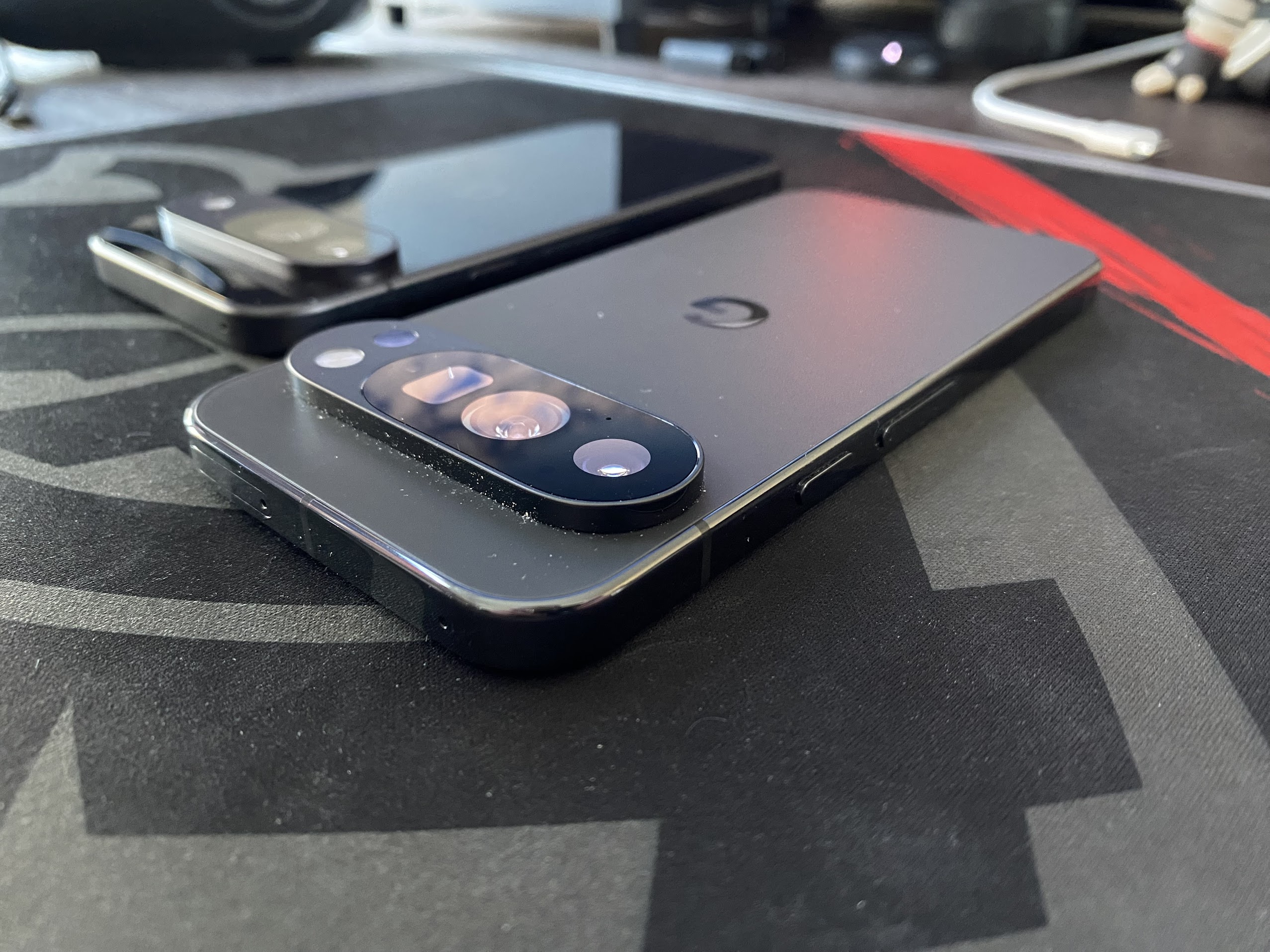 ⬆️📷 Pixel 10 Pro in Obsidian. In the background, a Pixel 9 in Obsidian.
Overall, the switching experience was pretty painless. Having a Google account (just like everyone else) makes it pretty easy to sign in to the phone. However for the data, the Pixel has this cool trick up its hat: it’s able to trick the iPhone into thinking it’s connected to a computer (which is what those are) when connected via USB. It scans and then lets you pick the data to transfer. I copied my photo library, messages and contacts.
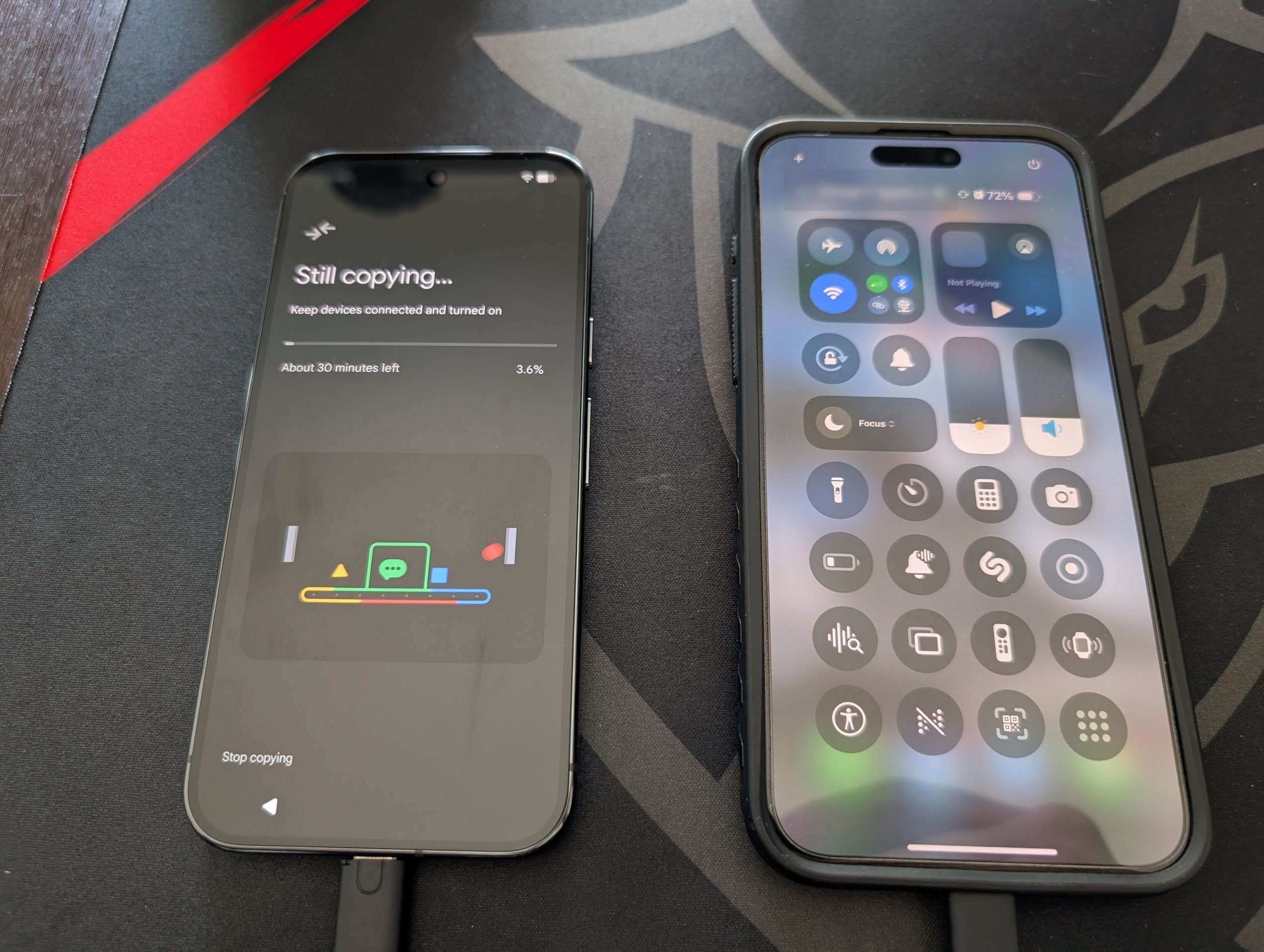 ⬆️📷 A (pretty blurry) picture. On the left, the Pixel 10 Pro, on the right, the iPhone 15 Pro Max.
And that’s about it. Pop the SIM card in the new phone, slap a case on the device, and you’re… not done with it. While your contacts, photos and messages have been transferred, you’ll need to reinstall apps if they were not installed by the assistant.
During your migration, you’ll happen to come across apps that simply don’t want you to switch devices. I had the problem for:
- Photo Albums were not copied into Google Photos, meaning that you’ll have to make new albums containing your old photos.
- Apple Reminders were not migrated to Google Calendar reminders, unlike the calendar events themselves which were migrated for the most part.
- Signal, which as of writing still does not support switching from iOS to Android, or vice versa. You’ll lose your messaging data on both your old and new devices. Linked devices (like your computer) will be unaffected, though.
- WhatsApp, which tries something to ultimately fail and import zero messages. Their “message backup” ties it to the manufacturer’s cloud provider, which was iCloud on my end.
- Paperback, the best iOS Comic Reader out there, does not exist on Android. You can use Mihon instead.
Once installed, you’ll feel right at home. Android 16 works really well and there’s no major issue with it. The phone runs smoothly, and the battery will get better as you start using the phone: the first couple days may run you short, but after 5 to 10 days, it holds enough battery to start a second day.
One small thing I recommend checking right after switching your SIM to your new phone is if iMessage is still enabled. You can use Apple’s website to check and unregister your number from iMessage, which will allow iPhone users to text you, either via SMS or RCS if their carrier supports it.
Second thing I recommend checking if you live in a crowded zone or have poor cellular reception is the call mode. On iOS, Wi-Fi calling is preferred, but that’s not always the case for Android. Head to Settings > Network & internet > SIMs >your sim > Wi-Fi Calling. Switch it to Prefer Wi-Fi, use mobile network if unavailable. You’ll thank me later.
Overall, I find it’s a pretty simple phone. No boundaries, freedom of doing what you want since the bootloader is unlockable. Everything I like.
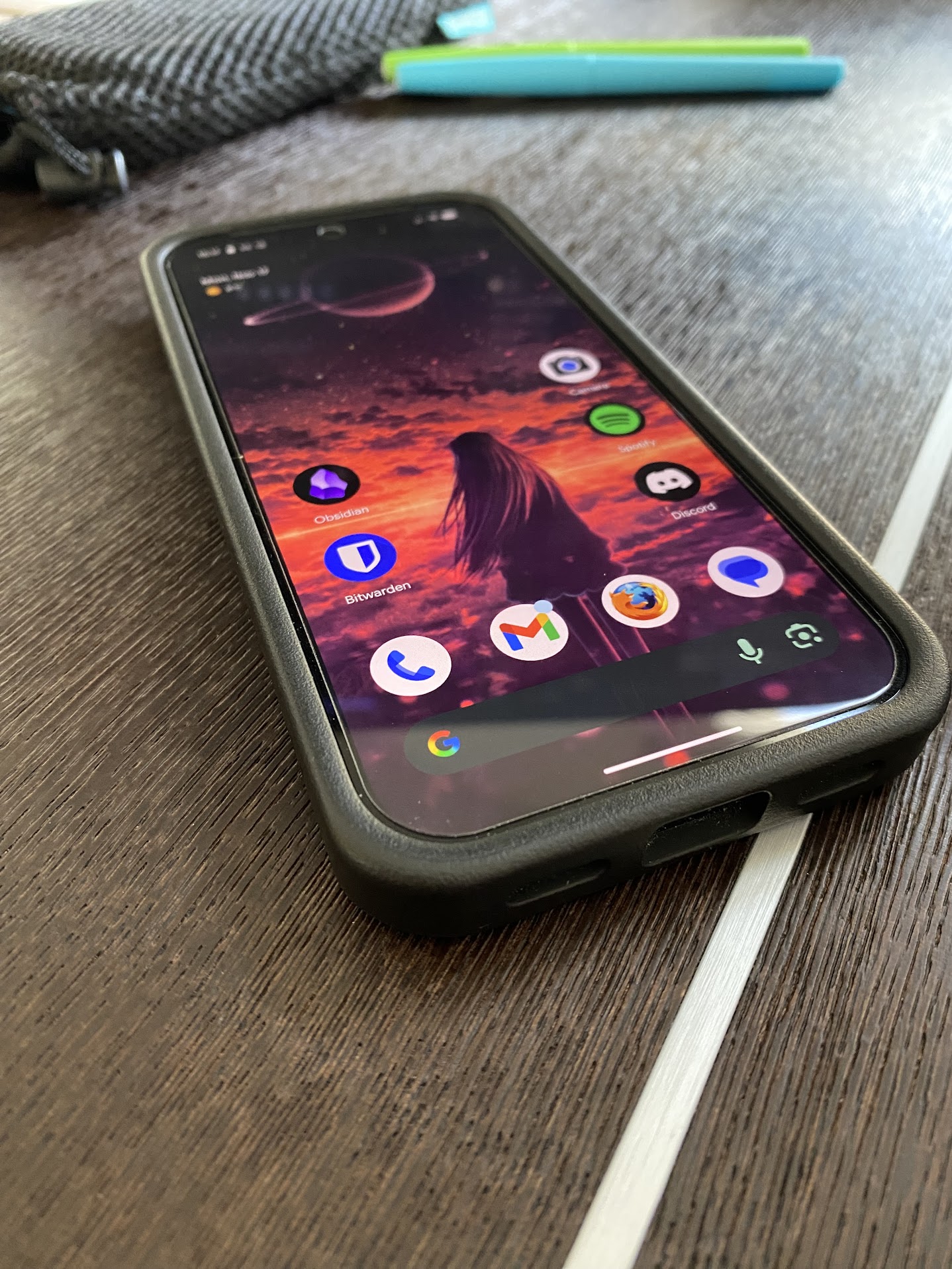 ⬆️📷 Pixel 10 Pro in a Rhinoshield case. The background comes from this Pixiv artwork.
Using Bitwarden? It’s going to be complicated.
Passwords Managers. They’re part of our everyday lives now. Except for Android devices I guess? After installing Bitwarden, logging in, enabling biometrics, setting it as the system password manager, it still takes a couple tries to get the “Fill via Bitwarden” prompt.
Sometimes, it’ll work just right:
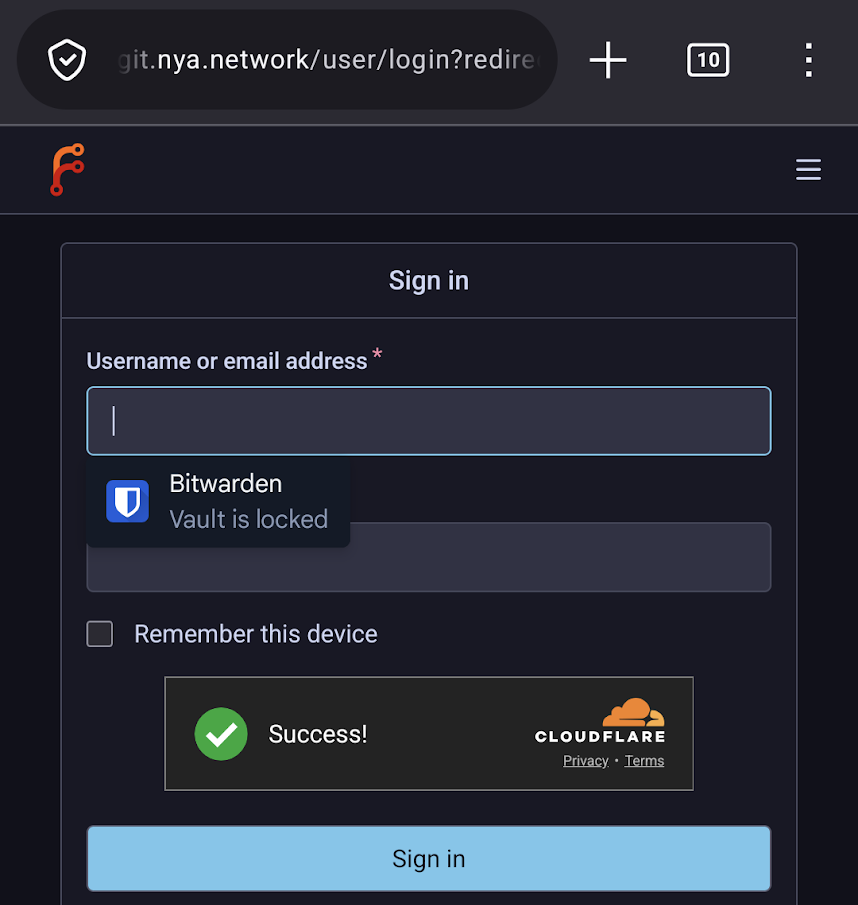
And sometimes.. you’ll just get nothing.
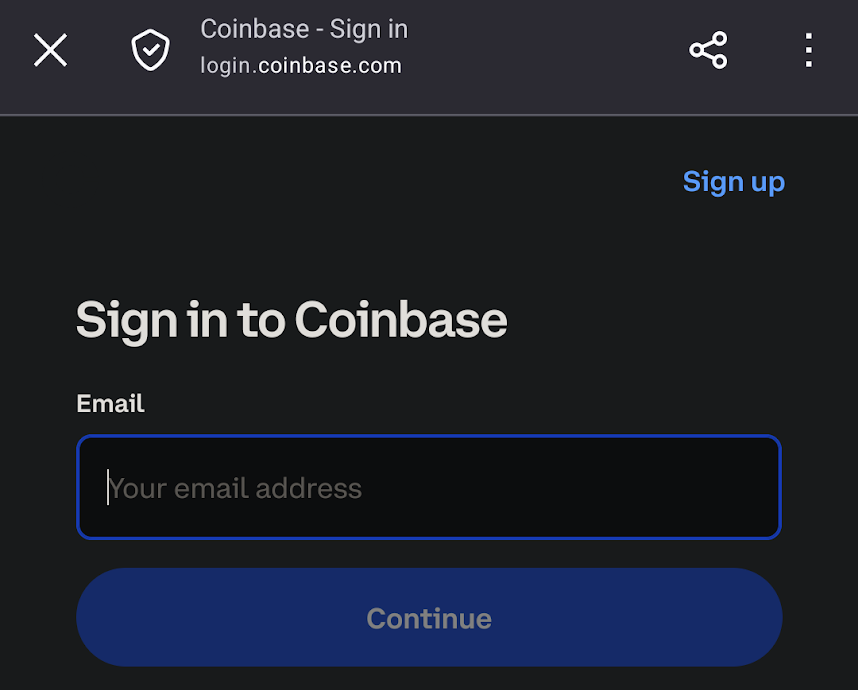
Why? How? Maybe it’s due to the embedded browser in the app? I have no idea. But it’s annoying and forces me to either guess the email address that I used to then get the prompt or either go to the app and copy/paste like a bozo.
Using your phone for public transportation? Think again.
Why? Because Google locks the available chips based on the region the phone was bought in. And there’s no official way to unlock that. Bought your phone in Europe, planning a trip in Asia? If your destination is Japan, there’s simply no way to get it working. While for some users a physical IC card is not an issue, it’s not always the most practical option. Some IC cards have to be charged with an amount of currency, you can’t know the amount by just looking at the card.. yuck.
Living in or visiting Japan? You’ll have to root your phone and install a Magisk module to enable that. Keep in mind topping up a virtual Suica card requires a Japanese-emitted credit/debit card.
Living in or visiting Paris? You’ll have to install 4 separate apps and keep 2 of them in the background at all times in order to pass the gates. Bonus point: if you accidentally uninstall one of the “critical” apps, you will have lost your tickets, and will get no refund.
The only place I’ve successfully used the local transports with my phone is London. But that’s because they require a credit/debit card, which is already fully supported via Google Wallet.
Did someone say smart watch?
Yes! Yes!! Smart watches are awesome. The Apple Watch Ultra is awesome. It’s an awesome piece of tech. Surely Apple would allow you to use it without an iPhon- ah, no. While a group of engineers reverse-engineered the protocol, there is still no practical way to use an Apple Watch without an iPhone.
Out there, there are many smart watches (or smart band) manufacturers. One of the cheapest ones is Xiaomi, with its Smart Band 10. I also considered the Garmin Venu 3, which is more of a fitness tracker than a smart watch. Then, there’s the Samsung Galaxy Watch Ultra, and the Pixel Watch 4.
Out of the smart watches, you’d want something that’s actually smart. This removes the Garmin watches from my pick as they lack features regarding “smartness”. Then, the design of Xiaomi devices wasn’t of my liking. Finally, Samsung watches lack features when not paired with a Samsung phone. So I went with the Pixel Watch 4.
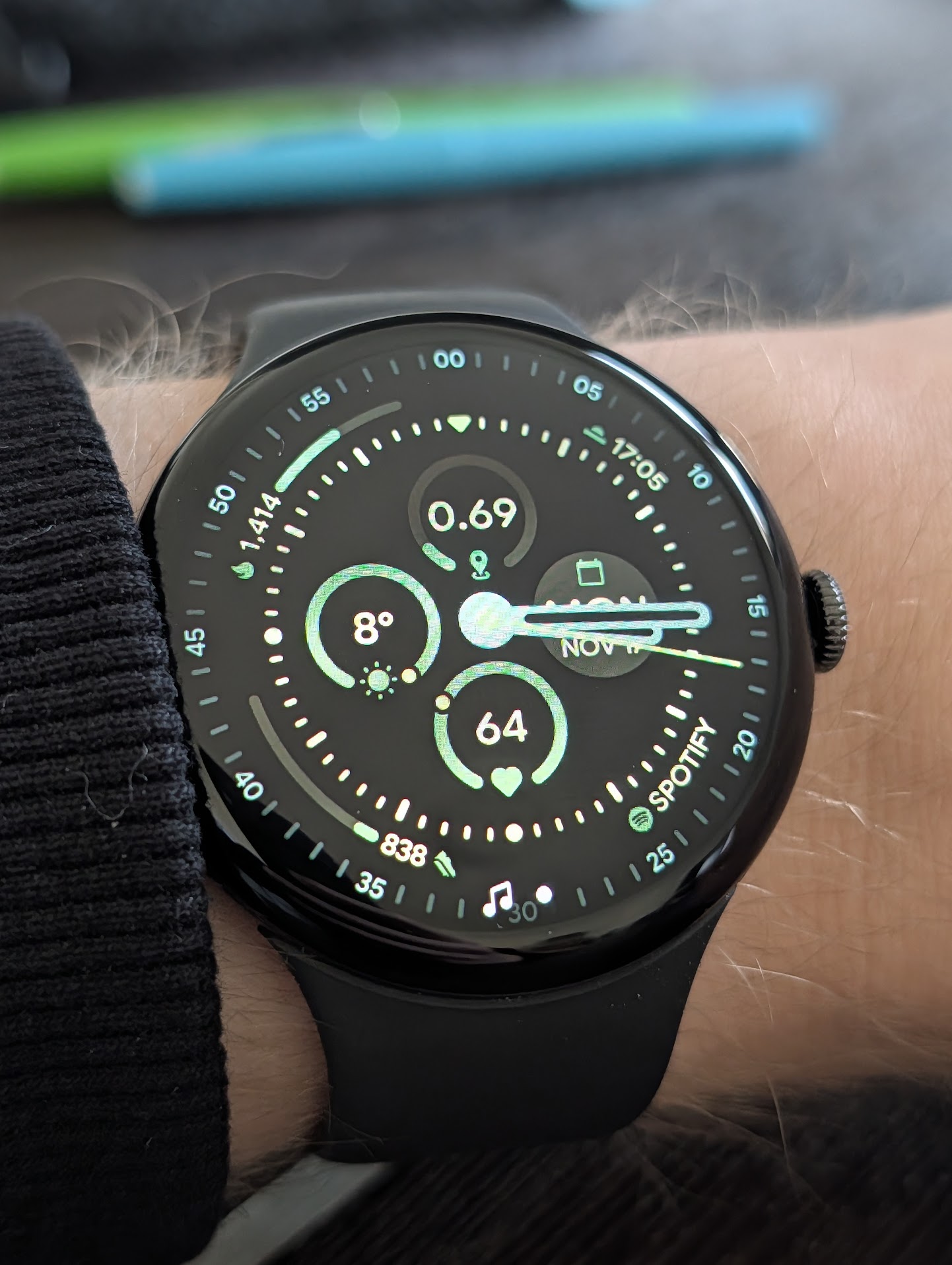 ⬆️📷 Pixel Watch 4 in 45mm. “Field” face with “Meadow” color.
While not perfect nor dirt cheap, it’s a pretty reasonable smart watch. The battery holds 2 full days of charge. The charger that comes in the box is a bit finnicky to get working at first (it has to lay very flat on the surface or will not charge) but once you’ve got it, it becomes a habit.
Fitness tracking somewhat differs when compared to the Apple Watch. While the metrics move in the same way, they don’t count “calories” the same way. On Apple’s side, you’ll get both the total calories burnt and workout calories burnt — only the workout calories count towards your objectives, while on Fitbit’s side, there’s only total calories burnt.
Did I mention Fitbit? It’s okay-ish. While you don’t get the same metrics as Apple Health, you get the essentials. ECG is compatible with the watch but region-locked and requires you to install the Fitbit ECG App because it does not come preinstalled (why?).
Everything on the Pixel Watch makes it feel like Fitbit is “something you installed” and not something part of the system: while Blood Oxygen sensors come with the watch, I have yet to try to take a sample that is not during sleep (which I did not mention but: sleep tracking works great).
The summary
It’s been great. The phone is great, comes with many features thanks to Android, and is not this hard to get up and running, even coming from an Apple-only experience. Internet will have you covered for most questions. As for the watch, it lacks responsiveness sometimes. But for the price, it’s still great. Would recommend both devices to a friend!